How to Use Cricut for Cutting Mobile Skin Templates (Complete Beginner to Pro Guide)
If you’re looking to design or market mobile skins on vinyl professionally, understanding the use of the Cricut cutting device is among of the essential skills you’ll be able to acquire. Cricut machines permit you to cut templates for mobile skins with high precision. This makes it possible to make top-quality skins for smartphones, tablets, and laptops.
When you’re planning to launch an online skin-making business or designing custom skins to use for your own personal needs, the complete guide below will show you how to utilize Cricut for creating mobile skin templates step-by-step.
It is a timeless guide that is useful for professionals and beginners alike.
What Is a Cricut Machine?
Cricut is a cutting machine made to cut different materials, such as:
- Vinyl
- Paper
- Cardstock
- Fabric
- Sheets of stickers
- Vinyl for heat transfer
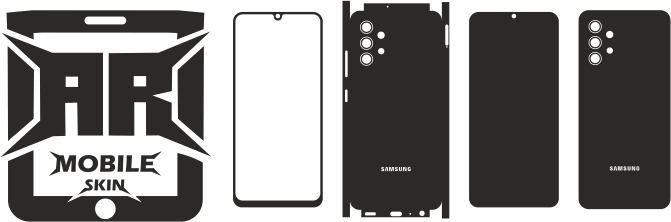
To make mobile skins, the Cricut machine cuts vinyl using the vector template files, like SVG and DXF.
Popular Cricut models include:
- Cricut Maker series
- Cricut Explore series
- Cricut Joy (limited capabilities)
Cricut Explore and the Cricut Maker as well as Explore is the best choices for making mobile skins.
Why Use Cricut for Mobile Skin Cutting?
Cricuts have many advantages:
Precision Cutting
The camera hole, the edges, as well as button cutouts, require precision.
Fast Production
Cut multiple skins at once and quickly.
Professional Quality
Clean cuts increase the customer’s satisfaction.
Business Scalability
Cricut allows you to increase production in line with the growth of your company.
Step 1: Install Cricut Design Space
Cricut Design Space can be described as the software that is used by Cricut for operating Cricut machines.
How to Install
- Visit the Cricut’s official website
- Download Cricut Design Space
- Set up and sign-up for your free account
- Connect to your Cricut machine to the internet via USB or Bluetooth
This program lets you upload, edit, or create mobile skin template templates.
Step 2: Get Mobile Skin Template Files
The vector template is needed for cutting mobile skins.
The formats supported are:
- SVG (recommended)
- DXF
- PNG (not suggested for cutting precision)
Professional templates ensure:
- Accurate camera alignment
- Curves for edges that are properly designed
- Paths that are clean and clear
Do not use low-quality or ineffective templates.
Step 3: Upload Template into Cricut Design Space
Take these steps:
- Open Cricut Design Space
- Click “Upload”
- Select the SVG or DXF template or DXF template
- Click “Upload Image”
- Place the template on canvas
Your template is now ready to cut.
Step 4: Set the Correct Size
This action is crucial.
Never alter the size of professional templates.
Make sure you check the dimensions of the template be sure to check the dimensions.
A scale that is not correct can cause:
- Cutouts of cameras that have been misaligned
- Improper-fitting skins
- Vinyl waste
Make sure to use the templates in their initial dimensions.
Step 5: Place Vinyl on Cricut Cutting Mat
Proper material placement ensures clean cuts.
Steps:
- Lay the vinyl sheet over cutting mat
- Remove bubbles
- Make sure that the vinyl adheres securely
- Load the mat into the Cricut machine
Use StandardGrip or LightGrip mats depending on the vinyl type.
Step 6: Select Correct Cutting Settings
In Cricut Design Space:
Click “Make It”
Select the material you want to use:
- Premium Vinyl
- Matte Vinyl
- Gloss Vinyl
Recommendations for settings:
- Pressure: A default, or a little raised
- Blade: Fine point blade
Always perform a test cut first.
Step 7: Start Cutting the Mobile Skin Template
After everything is in place:
- Cut mats to be loaded.
- Press the flashing Cricut button.
- The machine starts cutting instantly.
The cutting time typically varies from:
- 30 seconds to 2 hours per face
The precision of cutting guarantees a high-quality result.
Step 8: Remove Vinyl and Weed the Skin
Weeding is the process of removing the vinyl that has accumulated.
Equipment required:
- Tool for Weeding
- Tweezers
Steps:
- Take care to remove the vinyl mat
- Get rid of any vinyl
- Only leave the shape of your skin
Be careful not to risk harming edges.
Step 9: Test Fit the Mobile Skin
Before selling or applying for:
Check out the phone in real life.
Check:
- Camera alignment
- Edge fitting
- Button Clearance
Testing ensures perfect results.
Step 10: Apply the Mobile Skin
The application process
- Clean phone surface
- Align the camera cutout first
- Gradually apply downward
- Remove bubbles
- If you require heat, use gentle pressure.
Proper application improves durability.
Common Cricut Mistakes to Avoid
Don’t make these mistakes as a beginner:
Resize templates
Employing blunt blades
Incorrect material settings
Avoiding test cuts
Vinyl of low quality
The mistakes can result in material loss and inadequate outcomes.
Best Cricut Settings for Mobile Skin Vinyl
Recommendations for configurations:
Material: Premium Vinyl
Blade: Fine Point Blade
Pressure: Default
Mat: StandardGrip
Change settings in accordance with the thickness of the vinyl.
How to Increase Cutting Accuracy
To improve results:
Use sharp blades
Make use of professional templates.
Make sure to clean your cutting mats regularly.
Do not resize templates.
Choose top-quality vinyl
Accuracy increases customer satisfaction and decreases the amount of wasted time and money.
Using Cricut for Mobile Skin Business
Cricut enables you to:
Produce skins quickly
Customize designs
Scale production
Sell your products online.
Offer personalization services
The majority of mobile skin sales that are successful depend heavily on Cricut machines.
Cricut vs Manual Cutting
Manual cutting disadvantages:
Inconsistent cuts
Time-consuming
Poor accuracy
Cricut’s advantages
Cutting precisely
Rapid production
Professional quality
Cricut is a must for any serious seller.
Maintenance Tips for Cricut Machine
A proper maintenance program will ensure long-term success.
Make sure to clean the blade frequently.
Replace dull blades
Cleanse mat
Securely store the machine.
Maintained and maintained Cricut machines have been in use for years.
FAQs – Using Cricut for Mobile Skin Templates
Are there ways to Cricut cut accurately on mobile skins?
Yes. Cricut’s machines offer professional accuracy with the right templates.
Which Cricut machine is best for mobile skins?
Cricut Maker and Cricut Explore are two of the most popular options.
What file format works best with Cricut?
SVG is the preferred format for the best precision.
Can beginners use Cricut easily?
Yes. Cricut Design Space is beginner-friendly and simple to master.
How long does cutting one skin take?
The typical time span is between 30 seconds and between 30 seconds.
Do I need professional templates for Cricut?
Yes. Proficient templates guarantee a perfect fit and precision.
Final Thoughts
Understanding how to utilize Cricut to cut mobile skin templates can open an avenue to high-end mobile skin creation. No matter if you are looking to launch your own business or design customized skins, Cricut gives you the precision in speed, scale, and scale needed to succeed.
By using the right templates, proper settings, and careful testing, you will be able to create the perfect mobile skins in a consistent manner.
The art of mastering Cricut is among the essential steps towards creating a successful mobile skin company.