How to Use Mobile Skin Template Files with Cricut
Introduction
Custom mobile skins are now one of the fastest-growing categories within the accessories for smartphones industry. Numerous designers, entrepreneurs, as well as DIY enthusiasts are making their own custom vinyl skins with cutting tools like Cricut.
For those who are new, it can be difficult to comprehend the proper use of mobile skin templates when using Cricut devices. If they don’t follow the right process, skins could not be properly fitted, or even the vinyl could waste due to improper cutting settings.
This tutorial will show how you can use the mobile skin templates with Cricut step-by-step, beginning with downloading the template and continuing through to applying the final design on the phone.
Professionally-designed platforms such as ArMobileSkin.com provide ready-to-use templates for mobile skins, which are designed to cut machines, which makes the process easy for beginners as well as experts.
What Are Mobile Skin Template Files?
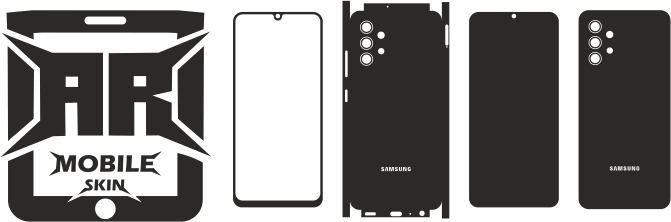
Mobile skin templates are designs that are vector-based, which contain exact outlines of the smartphone components. These outline lines represent areas in which vinyl is cut.
Templates typically include:
- Back skin
- Camera cutout
- Side skins
- Cutouts of the logo
- Button zones
The templates will ensure that your vinyl is perfect on the handset.
Downloading template templates through ArMobileSkin.com, you generally receive several formats of files, including:
- SVG
- AI
- DXF
- EPS
On Cricut devices for Cricut, SVG format is the most commonly used. SVG is most frequently employed.
Tools Required to Make Mobile Skins with Cricut
Before beginning, be sure you’ve got all the equipment needed.
1. Cricut Cutting Machine
The most well-known Cricut models comprise:
- Cricut Maker
- Cricut Maker 3
- Cricut Explore Air
- Cricut Explore 3
The machines can be used for cutting vinyl skins with precision.
2. Cricut Design Space
It is the authorized software for operating Cricut machines.
It lets you:
- Import SVG files
- Modify the size and location
- Design and send them to the machine that cuts
3. Vinyl Skin Material
The vinyl’s quality greatly determines the final product.
Materials to consider include:
- Matte vinyl
- Gloss vinyl
- Carbon fiber vinyl
- Textured vinyl
4. Transfer Tape
Transfer tape assists in applying the vinyl skin smoothly on the phone.
5. Weeding Tools
The tools are designed to help you remove the extra vinyl from the cut after cutting.
Step-by-Step Guide to Using Mobile Skin Templates with Cricut
Step 1: Download the Mobile Skin Template
First, download the right template to match the phone model you have.
Trustworthy platforms such as ArMobileSkin.com provide mobile skin templates that are compatible with a range of smartphone models, including:
- Samsung
- iPhone
- Xiaomi
- Google Pixel
- OnePlus
Make sure to double-check for the specific model of the device before you download.
Step 2: Open Cricut Design Space
When the template has been saved:
- Open Cricut Design Space
- Click New Project
- Select Upload Image
Step 3: Upload the SVG Template File
Next:
- Choose the SVG image file
- Transfer it to Cricut Design Space
- Place it on the canvas
Since SVG files are vector-based, they appear to be straight lines.
Step 4: Adjust the Template Size
In some cases, the size of the template may require some minor adjustments.
Be sure to check the measurements.
The typical mobile skin width ranges between
- 65mm to 80mm, depending on the model of phone.
The precise size ensures an exact alignment of the device.
Step 5: Place Vinyl on the Cutting Mat
Prepare your vinyl sheet.
Steps:
- Put the vinyl down on your Cricut cutting mat
- Smooth it out properly
- Eliminate air bubbles
This will ensure that the cutting is clean.
Step 6: Select the Cutting Settings
In Cricut Design Space:
- Click Make It
- Choose a vinyl material
- If needed, adjust pressure
The recommended settings are:
- Pressure: Medium
- Blade: Fine Point Blade
Step 7: Start the Cutting Process
The cutting mat is loaded into the Cricut machine, and then pressed to the cut button.
The machine cuts the vinyl in accordance with the template paths.
The procedure usually lasts about 1-2 minutes.
Step 8: Weed the Vinyl
Following cutting
- Clean the vinyl from the mat
- Make use of the weeding equipment
- Take off any excess material surrounding the design
The skin’s shape must stay the same.
Step 9: Apply Transfer Tape
Tape the transfer design onto the design on vinyl.
This allows the skin to be lifted away from the backing sheet while keeping the alignment.
Step 10: Apply the Skin to the Phone
Finally:
- Make sure the phone is clean
- Make sure you align the skin
- Apply from both sides
- Remove air bubbles
After the application after which, your phone will get the personalized professional design.
Benefits of Using Mobile Skin Templates with Cricut
Templates offer many benefits.
1. Perfect Accuracy
Templates are created by using accurate measurements of the device, making sure that the skins will fit perfectly.
2. Time Efficiency
Instead of manually measuring phones using a ruler, templates let you cut immediatel..
3. Professional Results
Using proper templates ensures skins look like factory-made products.
4. Business Opportunities
Numerous entrepreneurs sell customized mobile skins either online or in stores.
Thanks to platforms such as ArMobileSkin.com, it is simple to launch a mobile skin-related business.
Common Mistakes to Avoid
If you are using Cricut as a mobile skin, novices often make the same mistakes.
Incorrect Template Scaling
Make sure to check the size prior to cutting.
Using Low-Quality Vinyl
The cheap vinyl can shrink and tear easily.
Skipping Test Cuts
Make sure to test the cutting before cutting costly material.
Why Choose ArMobileSkin.com for Mobile Skin Templates?
In selecting templates for mobiles, the quality is paramount.
ArMobileSkin.com provides:
- Professionally developed templates
- Smartphone measurements that are precise
- Multiple formats for files
- Templates that can be used on a variety of different devices
- Files that are easy to download
They make the cutting process quicker, simpler to use, and also more secure.
Conclusion
Utilizing mobile skin templates using Cricut machines makes it possible to design custom smartphone skins that are created with the highest quality and accuracy. Following the right procedure–from downloading templates to applying vinyl — you are able to create high-quality skins that you can use to use for your own personal needs or create a successful business.
The most reliable platforms, such as ArMobileSkin.com, simplify this procedure by providing templates that work flawlessly using Cricut cutting machines.
If you’re a graphic designer or DIY-loving entrepreneur Mobile skin templates can be an effective tool to enter the booming market for customization of smartphones.
FAQs
1. Which format of file works best for Cricut machines?
It is the Format SVG is compatible when used with Cricut since it ensures precise cutting lines.
2. Can beginners use Cricut to make mobile skins?
Yes. Cricut is a great machine for beginners and is used extensively for making mobile skins for yourself.
3. Do mobile skin templates include camera cutouts?
Yes. Professional templates contain sensors, cameras, and logo cut-outs.
4. What vinyl is best for mobile skins?
Vinyl that is of high-end adhesive quality, such as carbon-fiber vinyl, matte, or even performs best.
5. Where can I download mobile skin template files?
Download professionally-designed designs from ArMobileSkin.com, which has templates available for various smartphones.